Folder Detail View
3 minute read
Introduction
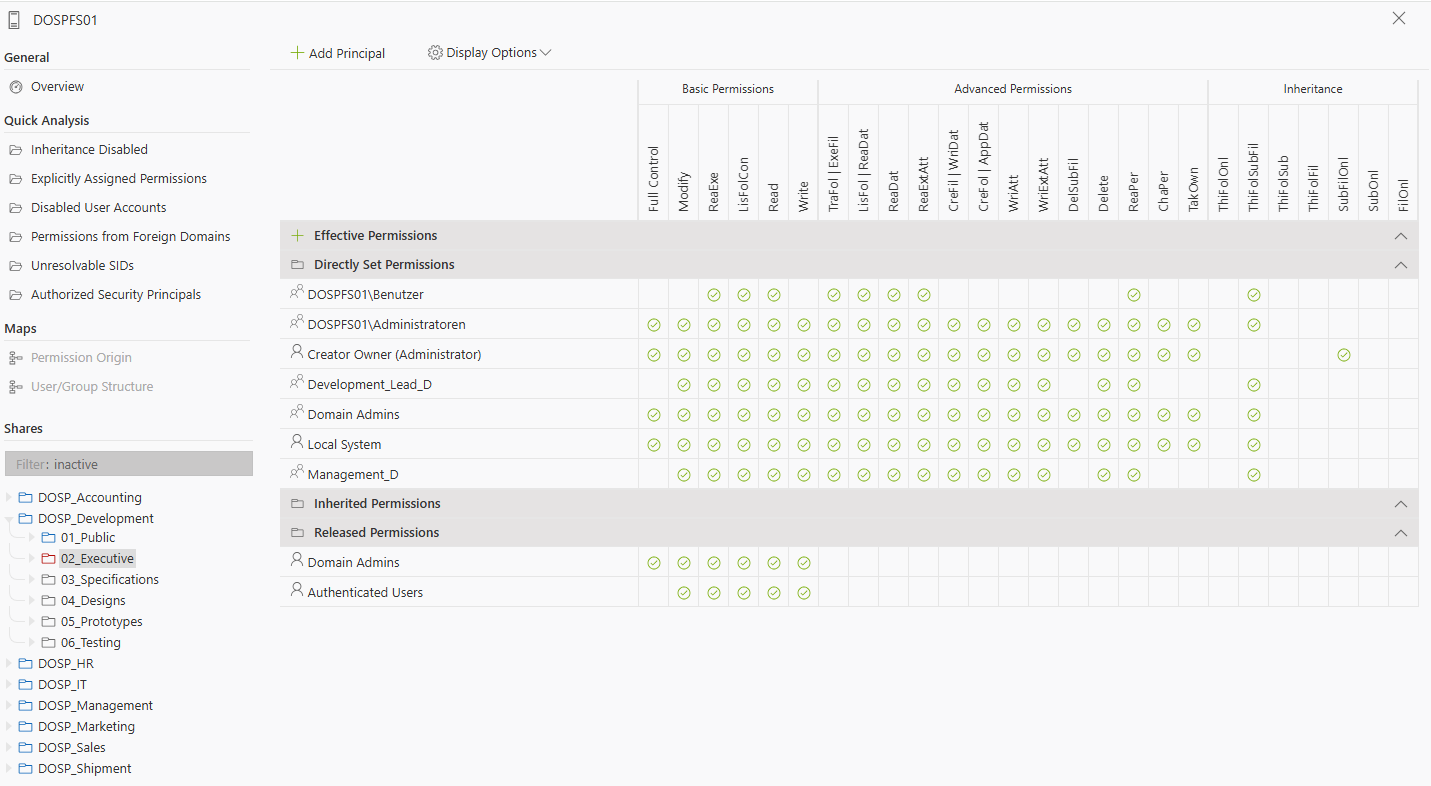
The detail view is the core of NTFS analysis in Docusnap365. As soon as a folder is selected in the left navigation tree, a structured permission matrix opens on the right side, displaying all assigned access rights in detail.
Accessing the Detail View
- Open an analysis: Navigate to an existing analysis task under Analysis > NTFS Analysis.
- Select a share: In the left tree, open a share and select a specific folder.
- Matrix display: The matrix on the right side automatically shows all permissions assigned to this folder.
Color Coding in the Navigation Tree
Folders in the navigation tree are color-coded depending on their permission situation. This helps you identify special cases even before opening a folder:
| Color | Meaning |
|---|---|
| Gray | Default display – no special cases (inheritance active, no direct rights) |
| Blue | This folder has explicitly assigned rights |
| Red | Inheritance is disabled – this folder does not inherit any rights |
This color scheme helps to quickly identify folders with potentially exceptional permission scenarios.
Overview of the Permission Matrix
The matrix is divided into three main areas:
| Area | Description |
|---|---|
| Share Permissions | Permissions granted at the share level (\\Server\Share). |
| Inherited Permissions | Permissions inherited from parent folders. |
| Explicit Permissions | Permissions defined directly on this folder. |
Display by Type
Each row in the matrix shows a principal (e.g., DOMAIN\User) with the assigned permissions. These are further divided into:
- Basic permissions (e.g., Read, Modify, Full Control)
- Advanced permissions (e.g., Delete, Write Attributes)
- Inheritance context (e.g., “This folder only,” “This and subfolders”)
Meaning of the Symbols
The matrix uses color-coded indicators to display permissions:
| Symbol | Meaning |
|---|---|
| ✅ Green check | The right is actively granted and applies to the current folder or selected path |
| ❌ Red check | The right is explicitly denied – denied rights take precedence |
| 🟠 Orange check | The right applies only to subfolders, not to the currently selected folder itself |
Note: The orange check typically appears when inheritance is set to “Subfolders only”, for example.
This presentation helps identify partially inherited rights in a differentiated way — especially in nested folder structures or with selective inheritance.
ErwAtSch = “Write Extended Attributes”). A tooltip with the full description appears when you hover the mouse over an abbreviation.Why This View Is So Important
This structured visualization allows administrators to immediately see:
- Which rights are effectively in effect
- Whether there are exceptions or deviations from the standard
- Whether rights are inherited or explicitly set
- How share permissions interact with NTFS permissions
Basis for Effective Permission Analysis
The displayed information serves as the foundation for calculating effective permissions in the next step. Only when share, inheritance, and explicit permissions are correctly resolved can a valid overall view of a user’s or group’s access situation be obtained.